Updating a DUR
Once a DUR is added the Patient Profile, you have the flexibility to edit it if needed. In EHR integrated provinces, certain fields will be disabled after a DUR is transmitted and cannot be edited.
To learn more, select the applicable tab for your province.
If a DUR is found locally, you can transmit updates for certain fields to the EHR. If a DUR is not found locally (i.e., added by another pharmacy), you can add a note from the EHR Profile for other healthcare professionals to see.
 Updating a Local DUR
To update a DUR:
-
Open the Patient Folder.
-
Select the Profile tab.
-
Select the DUR.
-
Select Detail. The DUR Instructions window opens.
-
Enter or modify any necessary information in the window.
-
To add notes to the DUR, select the Add button in the Notes section and enter information in the Notes textbox. Select the following checkboxes where appropriate.
-
Priority - if you want the note to pop up as an alert when opening the Patient Folder or processing a prescription in Rx Detail. If you already viewed the pop up when opening the Patient Folder, it does not display again in Rx Detail.
-
Alert - if you want the note to appear in the Rx Detail Alerts section when processing a prescription.
-
Print - if you want the note to print under the Notes/Alerts section of the Half label or if Digital Workflow is enabled, appear under the Clinical Review Notes tab.
-
EHR - if you want to transmit the note to the EHR. By default, this checkbox is ON if the Clinical Information record has been transmitted to the EHR.
-
-
Select OK. If the DUR was previously transmitted to the EHR, a processing message appears for the transmission of the update.
Adding a Note to a Non-Local DUR
To add a note to a non-local DUR:
-
Open the Patient Folder.
-
Select the Profile tab.
-
Select RX > EHR-All. The Patient EHR Access Reason window opens.
-
Select a reason from the dropdown menu and enter any comments as needed. Select OK. The EHR-All window opens.
-
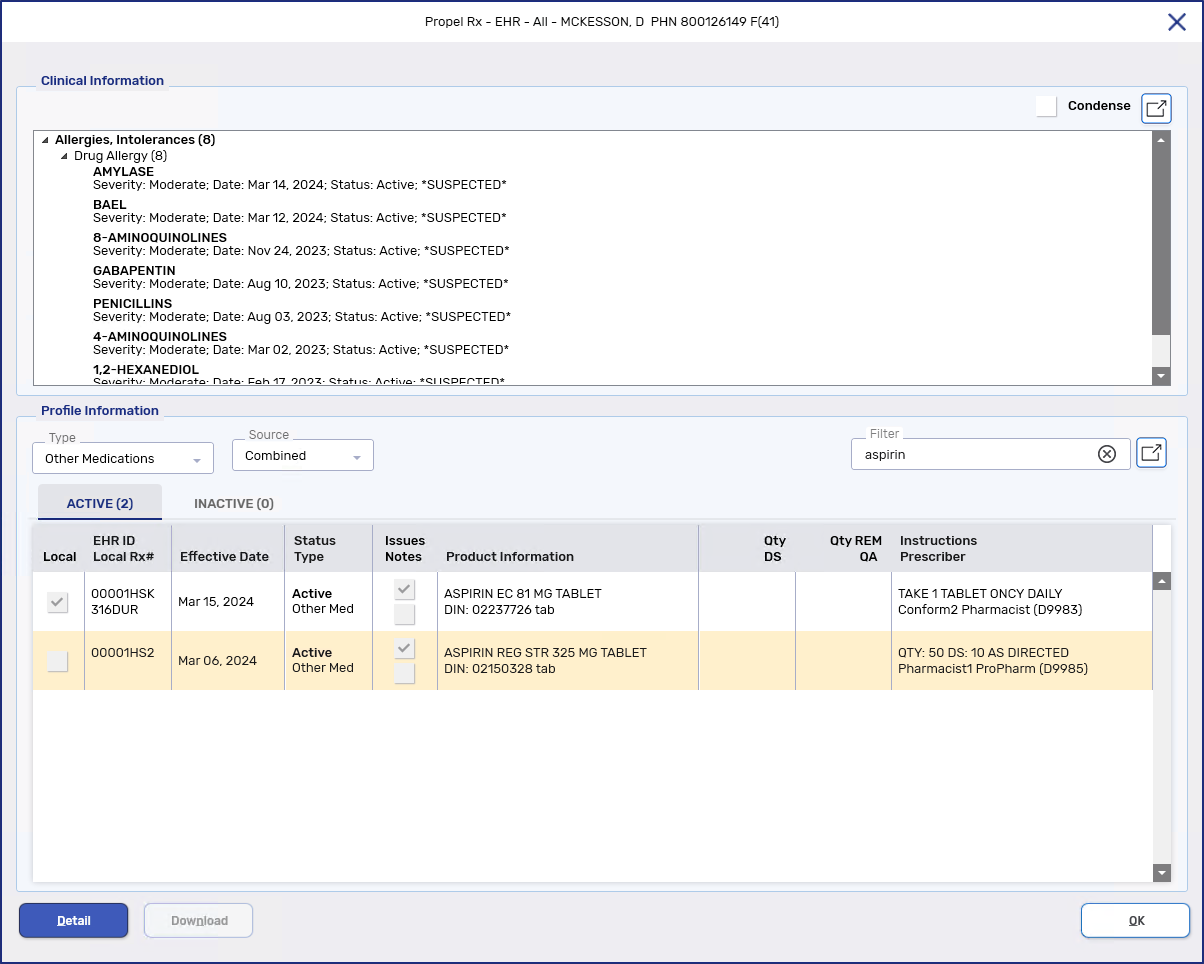
Locate the Other Medication.
You can use the Type dropdown to filter for Other Medications. Use the Filter field to search for the drug name.
-
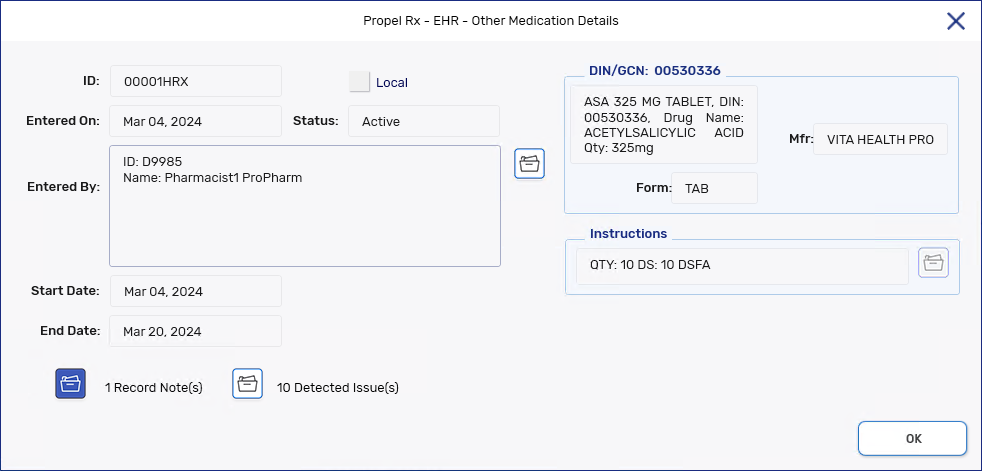
Select Detail Rx. The Other Medication Details window opens.
-
Select the Record Note(s) folder button
 . The Record Notes window opens.
 -
Select the plus button
 to add a note. The Add record Notes window opens.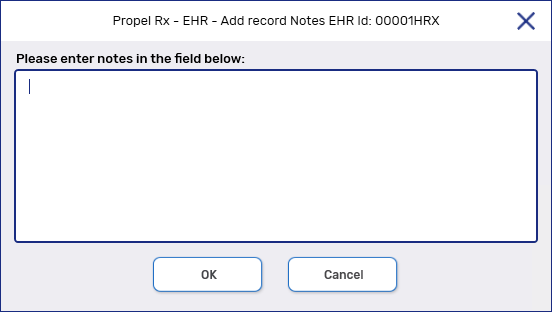
-
Enter your notes and select OK. The note will be sent to the EHR.
To update a DUR:
-
Open the Patient Folder.
-
Select the Profile tab.
-
Select the DUR.
-
Select Detail. The DUR Instructions window opens.
-
Enter or modify any necessary information in the window.
-
To add notes to the DUR, select the Add button in the Notes section and enter information in the Notes textbox. Select the following checkboxes where appropriate.
-
Priority - if you want the note to pop up as an alert when opening the Patient Folder or processing a prescription in Rx Detail. If you already viewed the pop up when opening the Patient Folder, it does not display again in Rx Detail.
-
Alert - if you want the note to appear in the Rx Detail Alerts section when processing a prescription.
-
Print - if you want the note to print under the Notes/Alerts section of the Half label or if Digital Workflow is enabled, appear under the Clinical Review Notes tab.
-
-
Select OK.
-
Select Save.